
I’m often asked where people can obtain a copy of ‘The History of Every Shop in Stoke Newington Church Street’, which I compiled and which details the businesses that have operated in every shop on the street since the 1860s. The 1,070 free copies I have distributed since the summer of 2024 through local shops were made possible mainly thanks to businesses that covered the printing costs. However, anyone can print a copy themselves by uploading the PDF to the printing website I’ve been using, http://PrintPond.co.uk. I’ve found this site very reliable, having used it nearly 20 times.

A single copy of the 172-page book costs £12.48 (as of 1st January 2026 when I last checked) with free delivery, depending on the delivery address. The price per copy decreases when ordering multiple copies (for example, 10 copies cost £69.89, which is £6.98 per copy), which may be useful if you’re looking to get some for friends, family, colleagues, or employees.
I’ve outlined the instructions to follow. The process is quick and easy, taking just a couple of minutes, with the order usually delivered within 2–3 working days.
Printing website: https://www.printpond.co.uk/product/document-printing-and-binding/promo/wire/
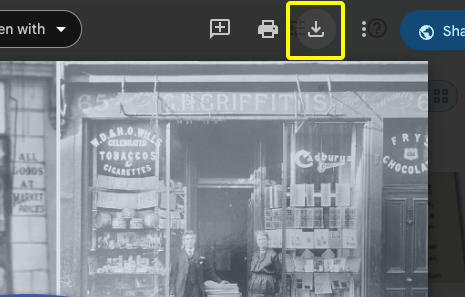
Step 1 – Download the PDF document of the book
The first thing you’ll need to do, is download the book so you can upload it to the website to print. Click here to download the book.
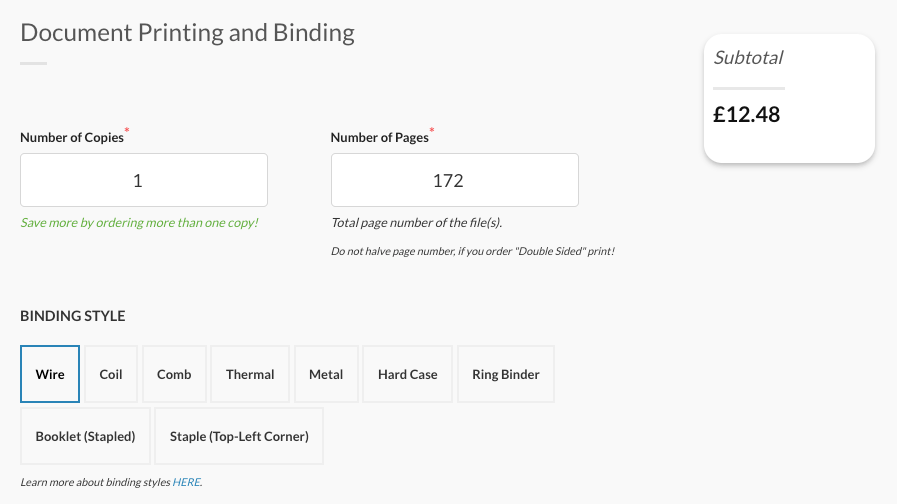
Step 2 – Print options
- Number of copies: Up to you!
- Number of pages: 172
- Binding style: Wire
- Paper size: A5
- Colour of black and white print: Black and white
- Single or both sided copy: Double sided
- Paper type: 160gsm white uncoated
- Binding orientation: Portrait
- Binding edge: Left edge
- Colour of wire: White
- Print first page in colour: Yes
- Covers: Standard
- More options: No


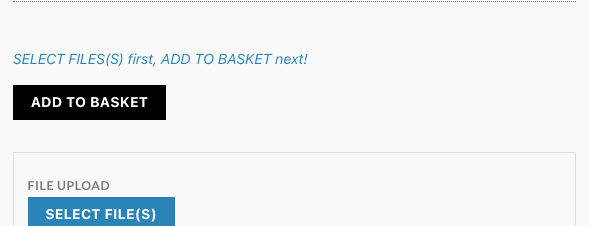
Step 3 – Select the file
Click ‘Select file‘ and choose the PDF document of the book you downloaded.

Once you select the file it will appear in the ‘Uploaded files’ section.

Step 4 – Add to basket
Once the file is uploaded successfully, click ‘Add to basket‘.
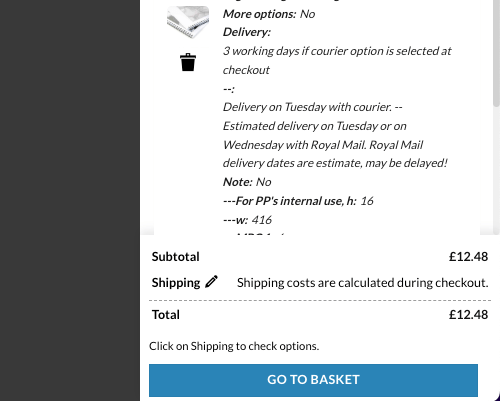
Step 5 – Basket/Checkout
Click ‘Basket/Checkout‘ at the bottom of the side panel that’ll open on the right.
Step 6 – Proceed to checkout
Review the print settings on the left, and once you’re ready click ‘Proceed to checkout‘.
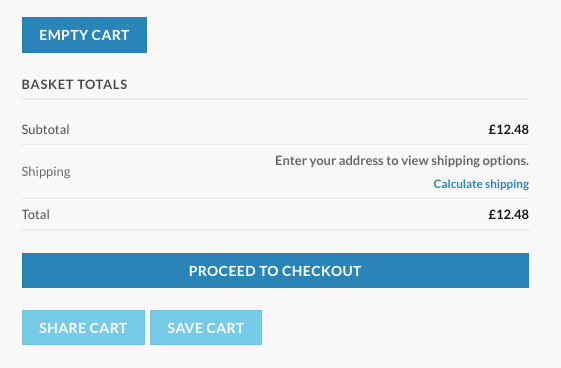
Step 7 – Checkout details and place order
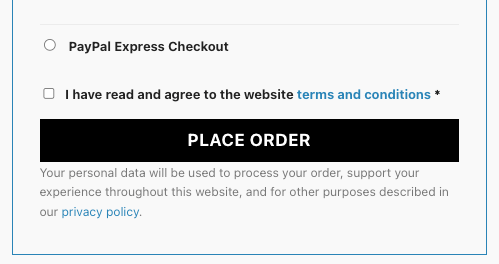
Provide the billing details, delivery details and payment details and press ‘Place order‘ when ready.
Confirmation emails
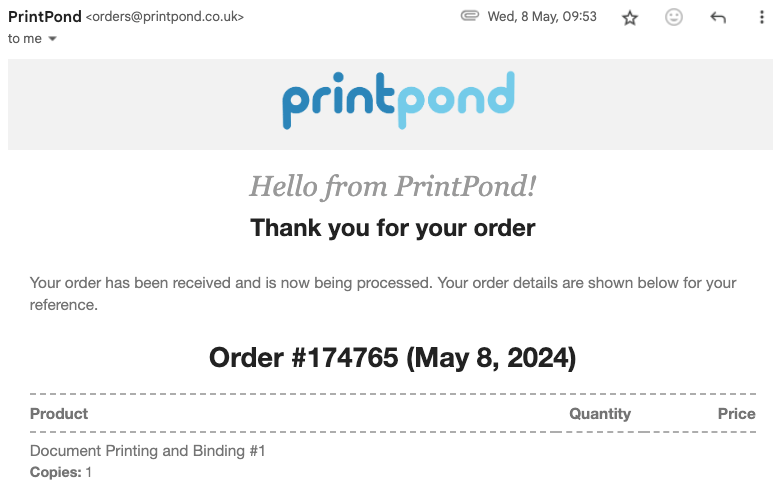
Once you submit the order you should get a confirmation email within a few seconds confirming the order was received.
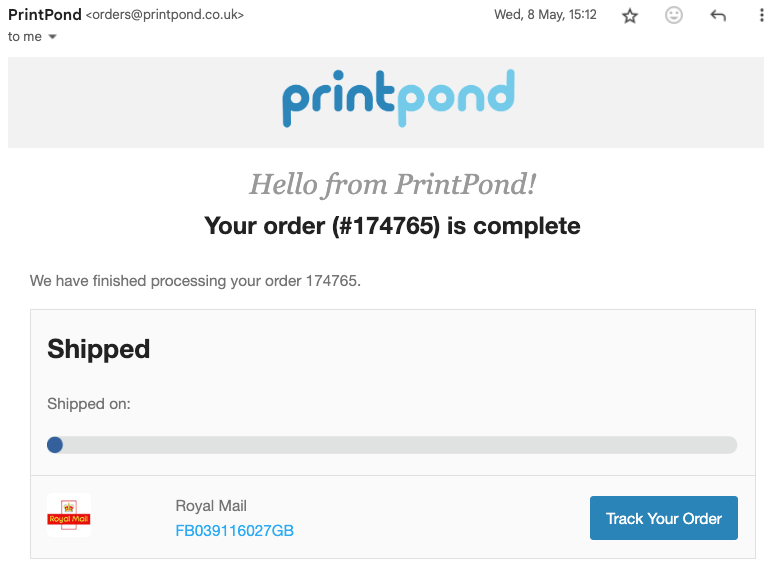
A day or two later a second email from PrintPond will inform you the order as been completed. The next emails you’ll receive will be from the courier company that’ll deliver the book or Royal Mail.
Enjoy!
 Stoke Newington History